Drop images here
Or paste with Ctrl+V. PNG, JPEG, WebP, GIF and other formats your browser can open.
Your images stay on this device. Nothing is uploaded.
Updated
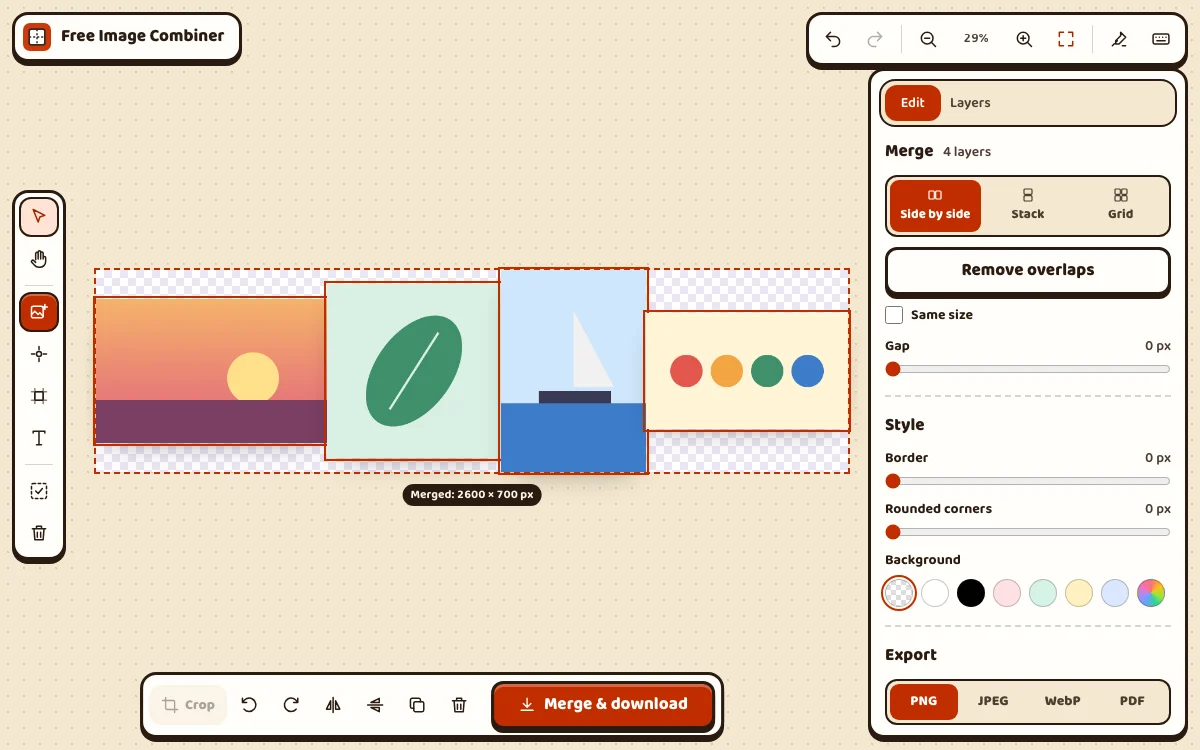
MeldImage is a free image combiner that runs in your browser. Drop in your pictures: they arrive side by side and selected, so Merge & download combines the images into one PNG, JPEG or WebP. Pick Stack or Grid first for another layout. The same canvas also splits a picture into tiles, crops, rotates, resizes and adds text. Your pictures stay on your device, with no account and no watermark.
Quick facts
| Fact | Detail |
|---|---|
| Layouts | Side by side, Stack, Grid (1 to 10 columns) or by hand |
| Also | Split into up to 10 × 10 tiles, stitch screenshots, crop, rotate, flip, resize and add text |
| Price | Free. No sign-up, no watermark and no ads. |
| Uploads | None. Pictures are processed in your browser and stay on your device. |
| Opens | PNG, JPEG, WebP, GIF (first frame) and other formats your browser can display |
| Saves | PNG, JPEG, WebP, or PDF on A4, Letter or a page the size of the picture |
| Largest result | 16,384 px on a side and about 16.8 million pixels. Larger results are scaled down, and the tool says so. |
| Works offline | Yes, after the first visit |
| Undo | 50 steps |
How to combine images online
Every job on MeldImage follows the same three steps. You can try them now without a picture of your own: press Try sample images and the tool draws 4 pictures in your browser.
- Add pictures. Press Choose images, drag files onto the canvas, or copy a picture and paste it with Ctrl+V (Cmd+V on a Mac).
- Arrange or edit. Select pictures and pick a layout to put them together, or select one picture to crop, rotate, flip, resize or split it.
- Export. Press Merge & download to save the selected pictures as one image (Download when one is selected), Copy to put it on the clipboard, or Download all to save each picture on its own in a ZIP.
Made a mistake? Undo with Ctrl+Z and redo with Ctrl+Shift+Z (Cmd on a Mac). The canvas remembers up to 50 steps.
What you can do on the canvas
The canvas is one workspace for the small picture jobs that come up every day. You don't switch between separate tools: the pictures you add stay in place while you try a layout, fix a crop or change the export format.
- Put pictures together. Line them up with Side by side, pile them up with Stack, arrange them in a Grid of 1 to 10 columns, or drag them anywhere by hand. The merge images page walks through each layout.
- Cut one picture into pieces. Choose rows and columns, or a preset like 3 × 3 for a profile grid, and the tool cuts the picture into numbered tiles. The image splitter page covers Instagram grids, carousels and printed posters.
- Fix a single picture. Crop it, Rotate it 90 degrees, Flip it, Resize it to exact pixels, Duplicate it or Delete it. Deleted pictures wait in the trash until you restore them or empty it.
- Add text and blank boards. Type a title or caption in one of four fonts, at sizes from 8 to 600 px and in any color. Or start from a blank board (square, 4:5, Story or 16:9) and place pictures on it, then download the board.
- Style and size the result. Add a border in the background color, round the corners, and save at 0.5×, 1× or 2× the size.
- Save a PDF for printing. Choose PDF and an A4 or Letter page. The page turns to match the picture, with a half inch margin. Tiles from a split and Download all become one PDF with a picture on each page.
- Make a file smaller. Export as JPEG or WebP, lower the quality, cap the width, or type a target size in KB and let the tool find the quality that fits.
Pictures the canvas can open
The canvas opens PNG, JPEG, WebP and GIF files, plus any other format your browser can display. AVIF works in most current browsers. A GIF opens as its first frame only, so an animated GIF becomes a still picture.
You can add pictures in three ways, and mix them in one session:
- Choose images opens your file picker, so you can pick files from a folder or a phone gallery.
- Drag and drop files from a folder or your desktop straight onto the canvas.
- Paste with Ctrl+V or Cmd+V. This is the quickest way to bring in a screenshot you just took.
Editing one picture
Select a picture on the canvas to see its tools. Each change applies to that picture only, so you can crop one screenshot and leave the rest as they are.
| Tool | What it does |
|---|---|
| Crop | Press Crop, C or double-click the picture, then drag the box or its handles over the part you want to keep. Lock it to Free, 1:1, 4:5, 16:9 or 9:16. |
| Rotate | Turns the picture 90 degrees left or right. |
| Flip | Mirrors the picture horizontally or vertically. |
| Resize | Drag a corner, or type a width or height in pixels. The other side follows, so the picture keeps its shape and is never stretched. |
| Duplicate | Adds a copy of the picture to the canvas. |
| Delete | Moves the picture to the trash, where you can restore it. |
Export options
When the layout looks right, select what to save. Merge & download saves the selected pictures as one image with these settings. Download all saves each picture as its own file in a ZIP, in the format you choose, or as one PDF with a page per picture.
| Setting | Choices |
|---|---|
| Format | PNG, JPEG, WebP or PDF. PNG and WebP can keep a transparent background; JPEG and PDF cannot. |
| Page size | For PDF: A4 or Letter, turned to match the picture, with a half inch margin; or Fit image, a page the size of the picture. The picture inside is JPEG at the quality you set. |
| Quality | 10 to 100, for JPEG and WebP. Lower numbers give smaller files. |
| Size | 0.5×, 1× or 2×: half, the same or double the pixels on the canvas. |
| Max width | Optional, under More options. A wider result is scaled down to this width. |
| Target size | Optional, in KB, for JPEG and WebP, under More options. The tool picks the highest quality that fits, and tells you if even the lowest quality is too big. |
Copy puts the merged picture on your clipboard as a PNG, where your browser allows it. You can then paste it into a chat, an email or a document without saving a file first.
Your canvas is saved in this browser
Close the tab and come back later: your pictures and layout are still there. The canvas is stored in this browser's own storage (IndexedDB) on your device, not on our server. It stays until you press Clear canvas or clear your browser data.
After your first visit, the tool also works offline. You can open the page on a train or a plane and keep working.
Very large results can go past what a browser can draw in one piece. Phones often stop at about 16 million pixels. When that happens, the tool scales the result down and tells you, so you know the file is smaller than the layout on screen.
Your pictures never leave your device
Everything happens in your browser. Your pictures are not uploaded, so we never see them. That matters for pictures you would rather not hand to a server, like screenshots of private chats, ID scans or family photos.
There is no account to create and no watermark on what you save. The tool is free. The privacy policy explains what the site does and doesn't collect.
Guides for each job
These pages go deeper into one job each. Each one opens the same tools, with steps and tips written for that job.
- merge images: how each layout works, when to use Same size, and how to hit a file size limit.
- image splitter: how to cut a picture into a 3 × 3 profile grid or a carousel, post it in the right order, or print it as a poster.
- stitch screenshots: how to join a chat or a long page from several screenshots, with the repeated bars and messages cut.
Image combiner: frequently asked questions
Is MeldImage free?
Yes. Every feature is free, with no sign-up and no watermark on the pictures you save.
How do I combine two images into one?
Add both pictures. They arrive side by side and selected, so press "Merge & download" to save them as one image. To put one above the other, pick "Stack" first.
Does the image combiner blend pictures with AI?
No. It places pictures next to each other, above each other, in a grid or wherever you drag them, and keeps each one as it is. It does not blend, generate or change pictures with AI.
Are my pictures uploaded?
No. The canvas works in your browser, so your pictures stay on your device. We never receive them.
Where is my work saved?
In this browser, on this device. The canvas keeps your pictures and layout until you press "Clear canvas" or clear your browser data. Another browser or device starts with an empty canvas.
Does it work on a phone?
Yes. Use "Choose images" to pick pictures from your gallery. Phones have a lower limit on how large one picture can be, often about 16 million pixels, so very large results are scaled down and the tool tells you.
Can I use it offline?
Yes, after your first visit. Open the page once while online, and it keeps working without a connection.
Which file formats can I open and save?
It opens PNG, JPEG, WebP, GIF (first frame only) and any other format your browser can display, such as AVIF in most current browsers. It saves PNG, JPEG, WebP and PDF (A4, Letter or the size of the picture).
How do I make the file smaller?
Export as JPEG or WebP, open "More options" and type a target size in KB. The tool picks the highest quality that fits. You can also lower the quality by hand or set a maximum width.
Can I add text to a picture?
Yes. Press "Add text" (or T), type in the panel, and pick a font, size, color, bold and alignment. The text is drawn into the image you download.
Can I get a deleted picture back?
Yes. Deleted pictures, text and boards go to the trash on the left toolbar. Open it to restore one item or all of them. "Clear canvas" empties the trash too.
Are there keyboard shortcuts?
Yes. Press ? (or the keyboard button in the top bar on a computer) for the full list. For example: V to select, H for the hand, C to crop, Del to delete, and the arrow keys to nudge (Shift moves 10 px).
Can I undo a change?
Yes. Press Ctrl+Z to undo and Ctrl+Shift+Z to redo (Cmd on a Mac). The canvas keeps up to 50 steps.