Drop your screenshots
Or paste with Ctrl+V. PNG, JPEG, WebP, GIF and other formats your browser can open.
Your images stay on this device. Nothing is uploaded.
Updated
To stitch screenshots, drop them on the canvas in order. MeldImage stacks them with no gap and cuts what repeats: the status bar and chat header on each later screenshot, the input bar on each earlier one, and messages that show up in two screenshots. Press Merge & download to save one long PNG, JPEG or WebP. Your screenshots stay on your device.
Quick facts
| Fact | Detail |
|---|---|
| Input | Screenshots of the same width, top to bottom |
| What is cut | Repeated top bars, repeated bottom bars and rows that show in two neighbors |
| Gap | None, so the result reads as one picture |
| Price | Free. No sign-up, no watermark and no ads. |
| Uploads | None. Pictures are processed in your browser and stay on your device. |
| Opens | PNG, JPEG, WebP, GIF (first frame) and other formats your browser can display |
| Saves | PNG, JPEG, WebP, or PDF on A4, Letter or a page the size of the picture |
| Largest result | 16,384 px on a side and about 16.8 million pixels. Larger results are scaled down, and the tool says so. |
| Works offline | Yes, after the first visit |
| Undo | 50 steps |
How to stitch screenshots
- Press Choose images and pick your screenshots in order, top to bottom, or drag them onto the canvas. To see how it works first, press Try sample images for three screenshots of a made-up chat.
- The screenshots are stacked with no gap and the repeats are cut. A short message says how many rows were cut.
- Check the joins, then press Merge & download.
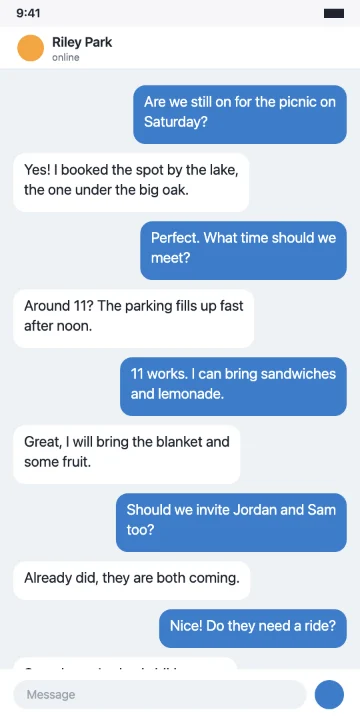
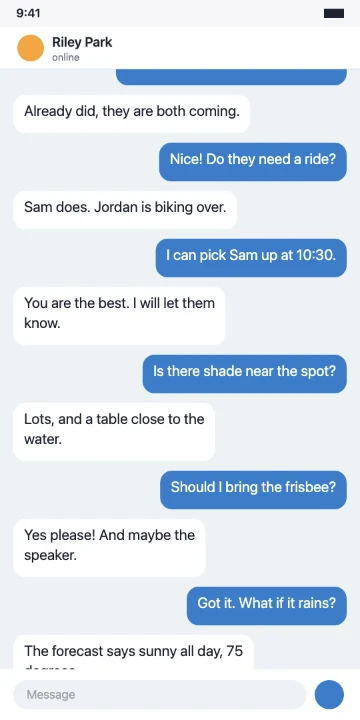
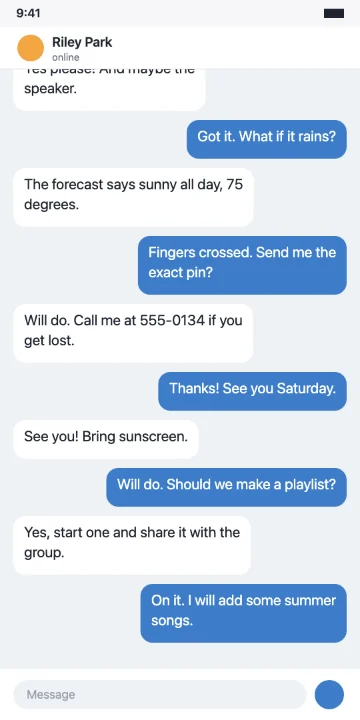
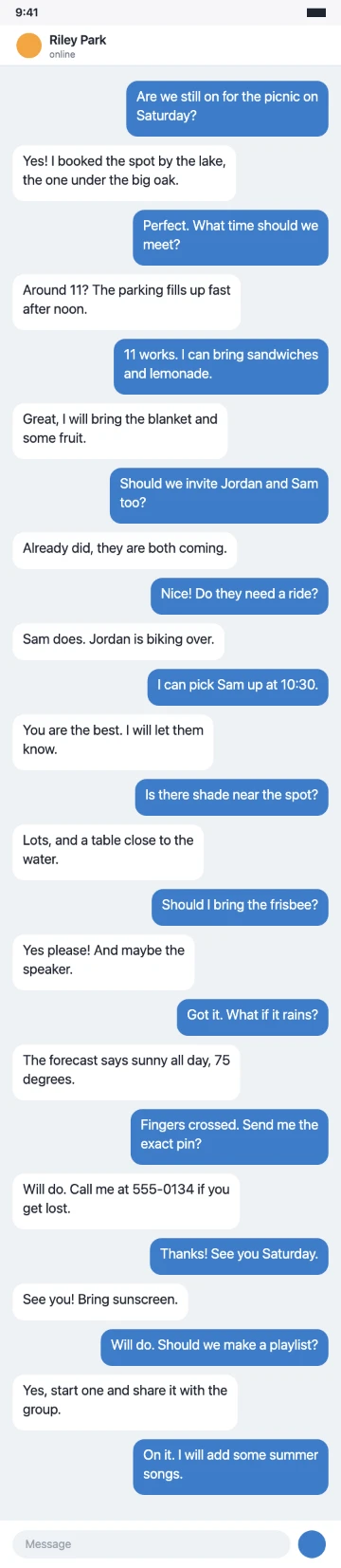
Added the screenshots one at a time, or moved them around? Select them all and press Remove overlaps in the panel on the right. It works on the selected pictures from the top down.
What gets cut, and what stays
MeldImage compares the screenshots row by row and only cuts rows that are the same in two neighbors:
- Top bars. Rows at the very top that two screenshots share, like the status bar and the chat header, stay on the first screenshot and are cut from the next.
- Bottom bars. Rows at the very bottom that two screenshots share, like the message box or a tab bar, stay on the last screenshot and are cut from the one before.
- Overlap. When the end of one screenshot shows up again at the start of the next, it appears once.
Nothing else changes. Each screenshot keeps its own pixels, so text stays as sharp as in the original.
Stitching needs screenshots of the same width, from the same phone or window. If something changed between two screenshots in the repeated part, like a typing indicator or a time that ticked over, that pair is not matched. The screenshots are then stacked as they are, and you can crop the extra part by hand.
Take screenshots that stitch well
- Scroll a little less than a full screen each time, so 2 or 3 messages show in both screenshots.
- Let the scrolling stop before you take the next screenshot.
- Keep the same zoom and the same orientation for all of them.
- Close the keyboard first, so every screenshot has the same bottom bar.
Leave out names and numbers before you share
A stitched chat often shows a name, a profile picture or a phone number. The chat header on the first screenshot keeps the contact name, so crop it off if you don't want to share it: select that screenshot, press Crop, and drag the top edge of the box down. MeldImage has no blur or cover tool, so crop out anything else you want to keep private before you share.
Save, copy or split the long image
| Goal | What to choose |
|---|---|
| Sharp text | PNG. It keeps every pixel, which suits screenshots. |
| A smaller file | JPEG or WebP, or a target size in KB under More options. |
| Paste into a chat | Copy puts the long image on your clipboard, where your browser allows it. |
| Post as several pages | Split it with the image splitter: 1 column and as many rows as pages. Check that no cut runs through a line of text. |
A browser can draw a picture up to 16,384 px tall, and phones often stop at about 16 million pixels in all. A very long stitch beyond that is scaled down, and the tool tells you.
Your screenshots stay on your device
Stitching happens in your browser. Your screenshots are not uploaded, so private chats, receipts and account pages never leave your device. The canvas is kept in this browser until you press Clear canvas, and after your first visit the tool works offline. It is free, with no account and no watermark.
More you can do on the canvas
- Put pictures side by side or in a grid instead with merge images.
- Cut one long picture into pages or tiles with the image splitter.
Stitch screenshots: frequently asked questions
How do I stitch screenshots together?
Drop the screenshots on the canvas in order, top to bottom. They are stacked with no gap and the repeated bars and messages are cut. Then press "Merge & download".
Why are some repeated parts still there?
Only rows that are the same in both screenshots are cut. Screenshots of different widths, a changed zoom, or something that moved between them, like a typing indicator, stop a match. Crop the extra part by hand with "Crop".
How many screenshots can I stitch?
There is no fixed number. The limit is the height of the result: a browser can draw up to 16,384 px tall. Beyond that the result is scaled down, and the tool tells you.
Does it work with iPhone and Android screenshots?
Yes. It opens PNG, JPEG and any other format your browser can display. Stitch screenshots from the same phone, so they share a width.
Can I put screenshots side by side instead?
Yes. Use merge images and pick "Side by side". Repeats are only cut when screenshots are stacked.
Are my screenshots uploaded?
No. Everything happens in your browser, so your screenshots never leave your device.