Drop an image to split
Or paste with Ctrl+V. PNG, JPEG, WebP, GIF and other formats your browser can open.
Your images stay on this device. Nothing is uploaded.
Facts checked on
This image splitter cuts one picture into equal tiles. Select the picture, set up to 10 rows and 10 columns or pick a preset like 3 × 3, press Split, then press Download tiles to get a ZIP numbered 01, 02 and so on. It runs in your browser, so the picture is never uploaded.
Quick facts
| Fact | Detail |
|---|---|
| Grid | 1 to 10 rows and 1 to 10 columns, up to 100 tiles |
| Presets | 3 × 1, 3 × 3, 2 × 2, 1 × 2 |
| Tiles | At the picture's own pixels, numbered 01, 02 and so on, in a ZIP or one PDF with a page per tile |
| Price | Free. No sign-up, no watermark and no ads. |
| Uploads | None. Pictures are processed in your browser and stay on your device. |
| Opens | PNG, JPEG, WebP, GIF (first frame) and other formats your browser can display |
| Saves | PNG, JPEG, WebP, or PDF on A4, Letter or a page the size of the picture |
| Largest result | 16,384 px on a side and about 16.8 million pixels. Larger results are scaled down, and the tool says so. |
| Works offline | Yes, after the first visit |
| Undo | 50 steps |
How to split an image
- Add the picture: press Choose images, drag it onto the canvas, or paste it with Ctrl+V (Cmd+V on a Mac). Press Try sample images to practice first.
- Click the picture to select it.
- Set the rows and columns (1 to 10 each), or press a preset: 3 × 1, 3 × 3, 2 × 2 or 1 × 2.
- Press Split into 9 tiles (the number follows your grid). The tiles take the picture's place on the canvas.
- Press Download tiles to save every tile in one ZIP, or keep working with the tiles on the canvas.
Tiles are numbered left to right, then top to bottom: 01 is the top left tile, and the last number is the bottom right. The numbers tell you where each piece goes, whether you post it or print it.
Presets for common splits
The presets cover four common splits. For any other grid, type the rows and columns.
| Preset | Tiles | Use it for |
|---|---|---|
| 3 × 1 | 3 | An Instagram carousel that scrolls across one wide picture |
| 3 × 3 | 9 | A profile grid that shows one big picture across 9 posts |
| 2 × 2 | 4 | A poster printed on 4 sheets, or 4 equal crops of a scan |
| 1 × 2 | 2 | Cutting a picture in half, such as a two page scan |
Every tile keeps the shape of the picture divided by the grid. A picture three times as wide as it is tall gives three square tiles in a 3 × 1 split. If you want a different tile shape, Crop the picture first, then split it.
Post a 3 × 3 grid on Instagram
A grid post spreads one picture across 9 posts, so your profile shows it as a single large image. The order you post in matters. Instagram shows the newest post first, at the top left of your profile grid. So you post the tiles from the last to the first:
- Pick the 3 × 3 preset, press Split into 9 tiles, then press Download tiles.
- Unzip the file on your phone or computer.
- Post tile 09 first, then 08, and so on.
- Post tile 01 last. It lands at the top left, and the picture is complete.
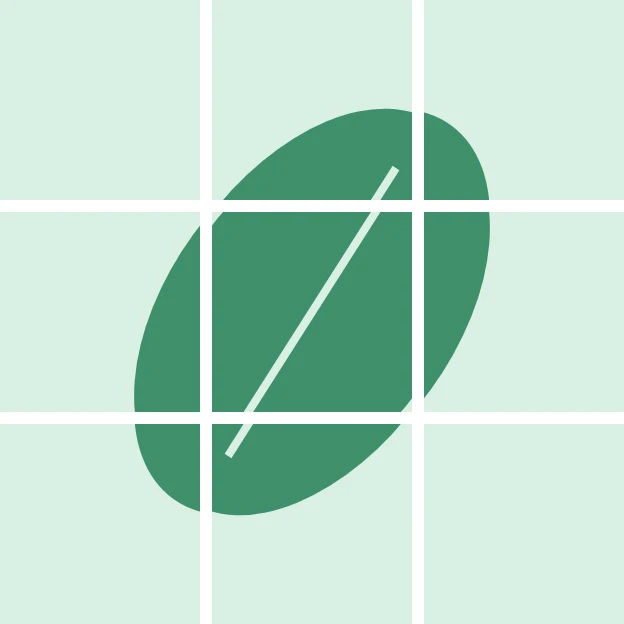
Instagram trims post thumbnails on the profile grid, and it has changed their shape before. Look at how your profile shows posts today, and leave some space around faces and text near the tile edges so a trim does not cut them.
Posting between tiles breaks the picture apart, since any new post pushes the grid along. Post all 9 tiles in one session.
Make a seamless carousel that scrolls across one picture
A seamless carousel turns one wide photo, like a landscape or a group shot, into slides that connect as people swipe. Instagram accepts portrait slides up to 4:5, which is 1080 × 1350 px. For three full 4:5 slides, start from a picture three times as wide as one slide: 3240 × 1350 px, a 12:5 shape.
- Select the picture, press Crop, choose 12:5, move the box over the part you want, and press Apply crop.
- Pick the 3 × 1 preset and press Split into 3 tiles, then Download tiles.
- Add the tiles to one carousel post in order: 01, 02, 03.
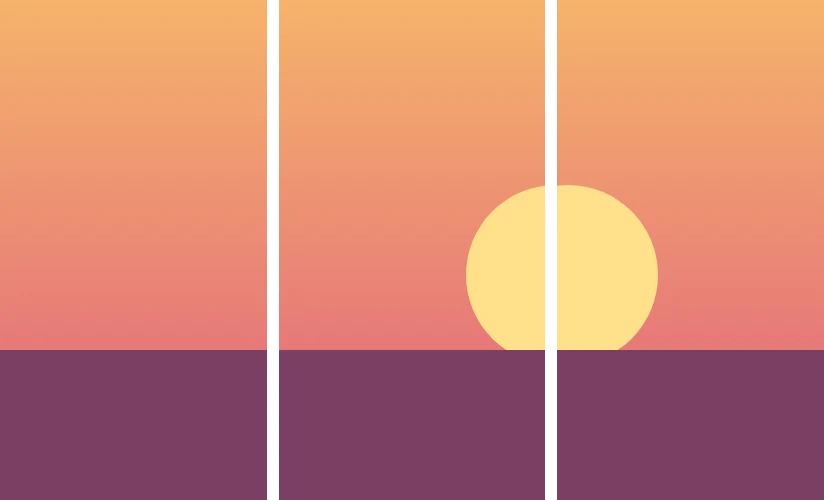
The cuts fall at exactly one third and two thirds of the width. Keep faces and text away from those lines; a shape that crosses a cut, like the sun below, is what makes the slides look joined. Unlike the profile grid, a carousel shows slides in the order you add them, so no reversing is needed.
A picture narrower than 3240 px gives slides narrower than 1080 px, which Instagram scales up. Start from the largest version you have. For a longer swipe, use more columns and a wider picture.
Print a large picture on several sheets
A home printer prints one sheet at a time. To print a poster bigger than that, split the picture into tiles and print one tile per sheet. A 2 × 2 split makes a poster about twice as wide and twice as tall as one sheet; a 3 × 3 split makes it three times each way.
- Start with the largest version of the picture you have. Each tile has only part of its pixels, so a small picture looks blurry when printed big.
- Before you press Download tiles, choose PDF and your paper, A4 or Letter. You get one PDF with a tile on each page, in order, ready to print in one go.
- Each page keeps a half inch margin, and most home printers add their own, so trim the white edges of each sheet before you join them.
- Lay the sheets out by number, 01 at the top left, and tape them on the back.
Split options and saving tiles
| Option | What it does |
|---|---|
| Rows and columns | 1 to 10 each, so up to 100 tiles from one picture. |
| Split into N tiles | Places the tiles on the canvas. You can then crop, rotate, resize or rearrange them, or merge some back together. |
| Download tiles | Appears after a split. Saves all tiles in one ZIP at the picture's own pixels, numbered 01, 02 and so on, left to right and top to bottom. With PDF chosen, it saves one PDF with a tile on each page, in the same order. |
| Undo | Ctrl+Z takes a split back, and Ctrl+Shift+Z redoes it (Cmd on a Mac). Up to 50 steps. |
After a split, the tiles are ordinary pictures on the canvas. Download tiles saves only the tiles; Download all saves every picture on the canvas. Both make a ZIP as PNG, JPEG or WebP, in the format you choose, or one PDF with a page per picture.
Your picture stays on your device
The cutting happens in your browser, and the ZIP is built there too. Your picture is never uploaded. The canvas is kept in this browser until you press Clear canvas, and after your first visit the splitter works offline. It is free, with no account and no watermark on the tiles.
More you can do on the canvas
- Going the other way? Use merge images to join several pictures side by side, in a stack or in a grid.
- See what else the image combiner does, from cropping and flipping to setting a target file size.
Image splitter: frequently asked questions
How do I split an image into a 3 × 3 grid?
Select the picture, press the "3 × 3" preset, press "Split into 9 tiles", then "Download tiles". You get 9 tiles in a ZIP, numbered 01 to 09.
In what order do I post grid tiles on Instagram?
From the last tile to the first. Instagram shows the newest post first, at the top left, so post tile 09 first and tile 01 last.
How are the tiles numbered?
Left to right, then top to bottom. Tile 01 is the top left corner, and the highest number is the bottom right.
How many tiles can I make?
Up to 10 rows and 10 columns, so up to 100 tiles from one picture.
Can I split a photo into two halves?
Yes. Use the "1 × 2" preset, or set the rows and columns yourself, such as 1 row and 2 columns for a left and right half.
Does the photo splitter reduce quality?
No. Splitting cuts the picture into pieces without scaling them, so each tile keeps the pixels of its part. JPEG and WebP compress the file when you save; PNG keeps every pixel as it is.
Is my picture uploaded?
No. The image splitter works in your browser, so the picture and the tiles stay on your device.
Can I split a picture on my phone?
Yes. Pick the picture with "Choose images", press "Split into…", then "Download tiles". Some phones need a files app to open a ZIP.